

Gal Sport Betting (GSB) App Download: Android APK & iOS Guide
To get the Gal Sport Betting app, open the official site on your phone and tap the Android or iOS icon in the site footer, then follow the on-screen steps to install it. The app uses the same login, balance and bonus as the desktop site, so there is nothing extra to set up once it is installed, no second registration, no separate wallet to fund, and no features held back for browser-only use.
Most players switch to the app after a few sessions on the mobile site, once checking odds or a live score on the way somewhere becomes a regular habit rather than an occasional one. The app does not unlock anything the website cannot do, it just removes the extra taps involved in getting there.
GSB App at a Glance
| Field | Detail |
|---|---|
| 📱 App Type | Android — direct APK from the official site; iOS — mobile-optimized site, added to your home screen for app-like access |
| 💾 File Size | Shown on the download screen before you install |
| 🖥️ Compatible OS | Any recent Android or iOS device |
| 🎮 Games Available | Full GSB platform — sports betting, live odds, Aviator, casino and virtual games |
| 🎁 Mobile-Exclusive Bonus | None confirmed — the app uses the same welcome bonus as the website, not a separate mobile bonus |
| 🔒 Download Source | Official site only (gsb.co.tz footer) |
| 💬 In-App Support | Same channels as the website — see Contact Us |
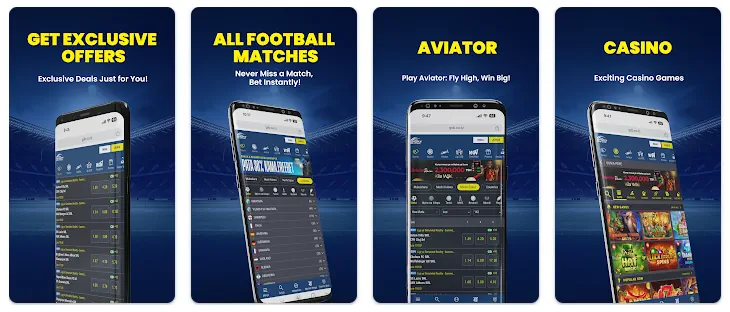
Is There a Gal Sport Betting App?
Yes, GSB offers an app you can install straight from the official site; look for the Android and iOS icons in the footer of any page. There is no separate listing to search for by name on either store, the footer link is the fastest and most reliable route on both platforms.
Native App vs. Mobile Website
An installed app sits on your home screen for one-tap access and can feel slightly faster once loaded, since some assets are stored on the device rather than reloaded from scratch each visit. Notifications are the other real difference, an installed app can alert you to a result or a live-odds shift without being open, something a browser tab cannot do on its own.
The mobile website needs no install, updates itself automatically without a manual app update, and works the same way on any phone regardless of storage space. It is a reasonable default if you are short on storage, sharing a device, or just want to place a quick bet without adding anything permanent to your phone.
Downloading and Installing the GSB App
The process differs slightly by platform, but both start from the same place: the app icons in the site footer.
Android: Step by Step
- Open gsb.co.tz in your phone’s browser.
- Tap the Android icon in the footer to start the APK download.
- If your phone blocks the install, allow installation from unknown sources for your browser in Settings — this is expected for any APK downloaded outside the Play Store.
- Open the downloaded file and tap Install.
- Launch the app and log in with your existing account, or register if you’re new.
iOS: Step by Step
Tap the iOS icon in the footer to open GSB as a mobile web app on your home screen, it gives the same account, odds and bonus as the Android app and desktop site, without going through the App Store. The setup takes two steps: open the link in Safari, then use the browser’s Add to Home Screen option so an icon sits on your phone exactly like a normal app would. From that point, opening it behaves the same as any installed app, full screen, no browser bar, and a session that remembers your login.
System Requirements
The app is built to run on ordinary phones rather than needing the latest hardware. A reasonably recent Android or iOS version, a small amount of free storage for the APK file on Android, and a stable mobile-data or Wi-Fi connection are enough to install and use it. There is no minimum RAM or processor requirement worth worrying about, if the phone can browse the mobile website comfortably, it can run the app the same way. Slower connections mainly affect how quickly odds and live scores refresh, not whether the app works at all.
Features of the GSB App
The app mirrors the desktop site rather than offering a stripped-down version:
- Full sports betting and live odds across football, basketball and Formula 1
- Aviator, casino and virtual games, all on the same balance as the sportsbook
- Deposits and withdrawals through the same mobile-money options covered on the Deposits and Withdrawals page
- A bet slip that carries over from the website if you switch devices mid-session
- Faster load times once the app has cached the basics, compared with a fresh mobile browser session
Is the App Safe?
The app only needs to come from one place, the official site. Downloading the APK from a third-party site, a forwarded link, or an unofficial app store carries risk and is not something GSB can vouch for, unofficial copies can be modified in ways that are not obvious from the outside. Traffic to and from the app runs over the same secured connection as the website, and the same 18+ registration check applies before an account can place a bet, installing the app does not skip or shortcut that step.
Fixing App Issues
| Issue | Likely Cause | Fix |
|---|---|---|
| App won’t install | “Unknown sources” blocked on your phone | Enable installs from unknown sources in Settings, then retry the APK |
| App crashes or won’t open | Outdated APK version or low storage | Delete and reinstall the latest APK from gsb.co.tz; free up storage first |
| Can’t log in after installing | Wrong password or unverified account | Reset your password on the website, confirm the SMS code, then log in again in the app |
| Odds or balance look outdated | Weak connection or cached data | Close and reopen the app on a stable connection, or check the mobile site instead |
| Deposit not showing in the app | Mobile-money confirmation delay | Wait a few minutes for the SMS confirmation, then check again; contact support if it doesn’t arrive |